Developer Studio runs automatic checks on startup to detect available updates. When an update is available, the Update Available dialog box displays with the new version number and a link to the Developer Studio page on Solution Exchange where you can access the download link for the new version.
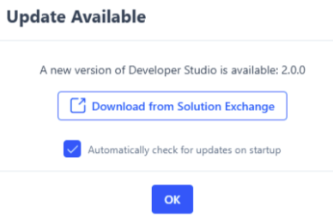
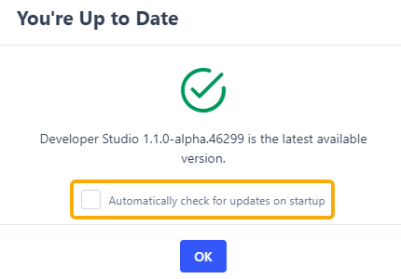
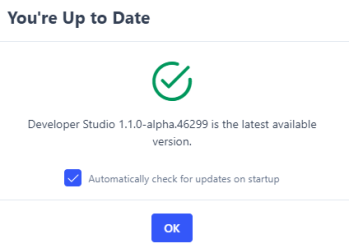
To manually check if a newer version of Developer Studio is available, go to File > Check for Updates. If an update is available, the Update Available dialog box displays. If you are on the current Developer Studio version, the You're Up to Date dialog box displays.
If Check for Updates is selected and the check fails, for example, due to a network error or session timeout, the Unable to Check dialog box displays.
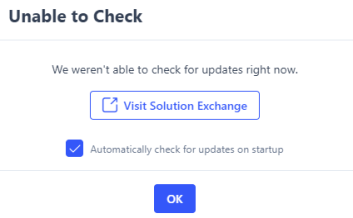
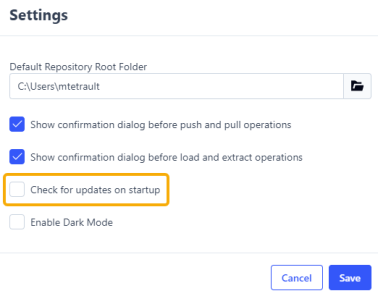
To turn off the automatic update checks on startup, go to File > Settings or, when manually checking for updates, deselect the Automatically check for updates on startup checkbox.